














What Is the AR Doodle App How It Works and How It Is Different From AR Zone - Euphoria XR

What Is the AR Doodle App? How It Works and How It Is Different From AR Zone

Share Article:
What Is the AR Doodle App How It Works and How It Is Different From AR Zone - Euphoria XR
Picture of Amelia Rose
Amelia Rose
Content Strategist & Copywriter
Summarize with:
Table of Contents
Table of Contents
Share Article:

TL;DR

AR Doodle is a Samsung-made augmented reality application that lets users virtually place drawings, handwriting, stickers, and effects on faces or actual environments using a camera. Face doodles can track an individual’s location or may stay static, fixed in place. On compatible devices, you can use your finger or an S Pen to draw to Gallery. Depending on your Samsung phone model, AR Doodle might open within AR Zone. It is possible to see it as a standalone Galaxy Store app on newer versions of One UI. The official Samsung app is safe (optional) and can be uninstalled, disabled, or hidden if it’s possible on the device. 

Looking for a bit of professional advice in your AR concept? 

You log in to the Samsung app and find an application that you are not sure you’ve installed. It’s called AR Doodle App, and it’s asking you to allow it to use your camera.

This can be a confusing experience. Maybe you’re not sure if it is safe, you don’t really need it, or maybe it’s just one more program that has encroached into your space.

AR Doodle app is a Samsung camera application. It allows you to capture virtual words, shapes, and effects on the face or place behind the camera. Some drawings have a mobile visage, and some are permanently displayed in the room. Samsung debuted AR Doodle for Galaxy Note10 and expanded its functionality to other supported Galaxy devices. 


What is the AR Doodle App on Samsung?

The AR Doodle app is a Samsung augmented reality camera app. It allows people to overlay animated images, text, and effects over faces or real space located in a user’s camera. Space doodles can be set and remain stationary, and face doodles can move with a person. On older Samsung devices, AR Doodle may be located in AR Zone. It can be provided as a separate application on newer versions of One UI. 
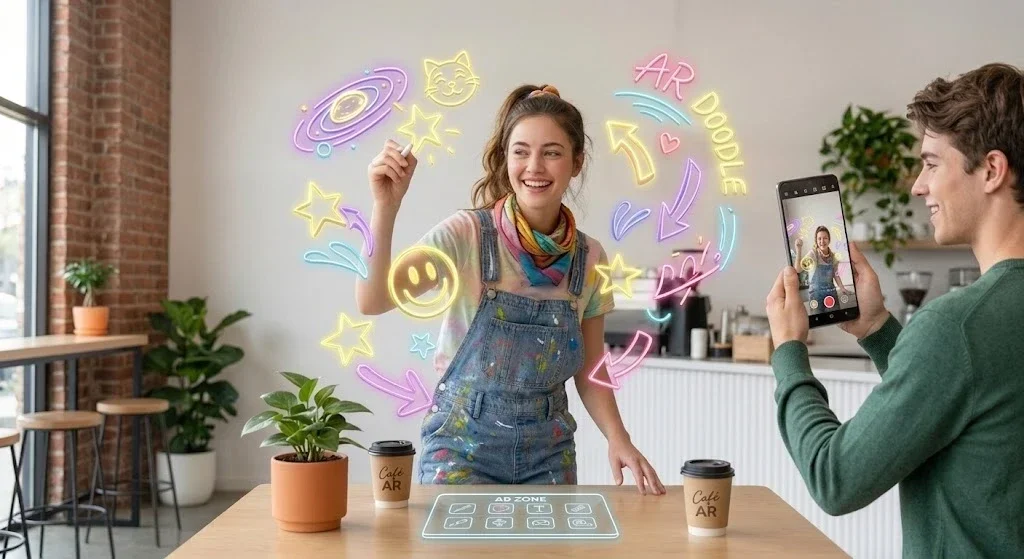
What Is the AR Doodle App on Samsung - Euphoria XR


What is the AR Doodle App Used For?

The AR Doodle app is used to create photos and videos with virtual drawings placed over people, objects, or places. It’s primarily a creative tool, but it can also be used for simple labels or to explain simple things visually.

You can use it to:

  •  Add glasses, hats, hearts, or words to a face

  •  Send virtual messages in the air.

  •  Label or highlight nearby items

  •  Make birthday and celebration videos

  •  Create personalized selfie effects!

  •  Make graphics for social media posts

  •  Emphasize a room or product through highlighting

  •  Demonstrate the drawing process as it happens 


How Does the AR Doodle App Work?

The AR Doodle app uses your Samsung camera to detect a face or understand the space around you. It then stinks a digital drawing to the person you have selected or location. 
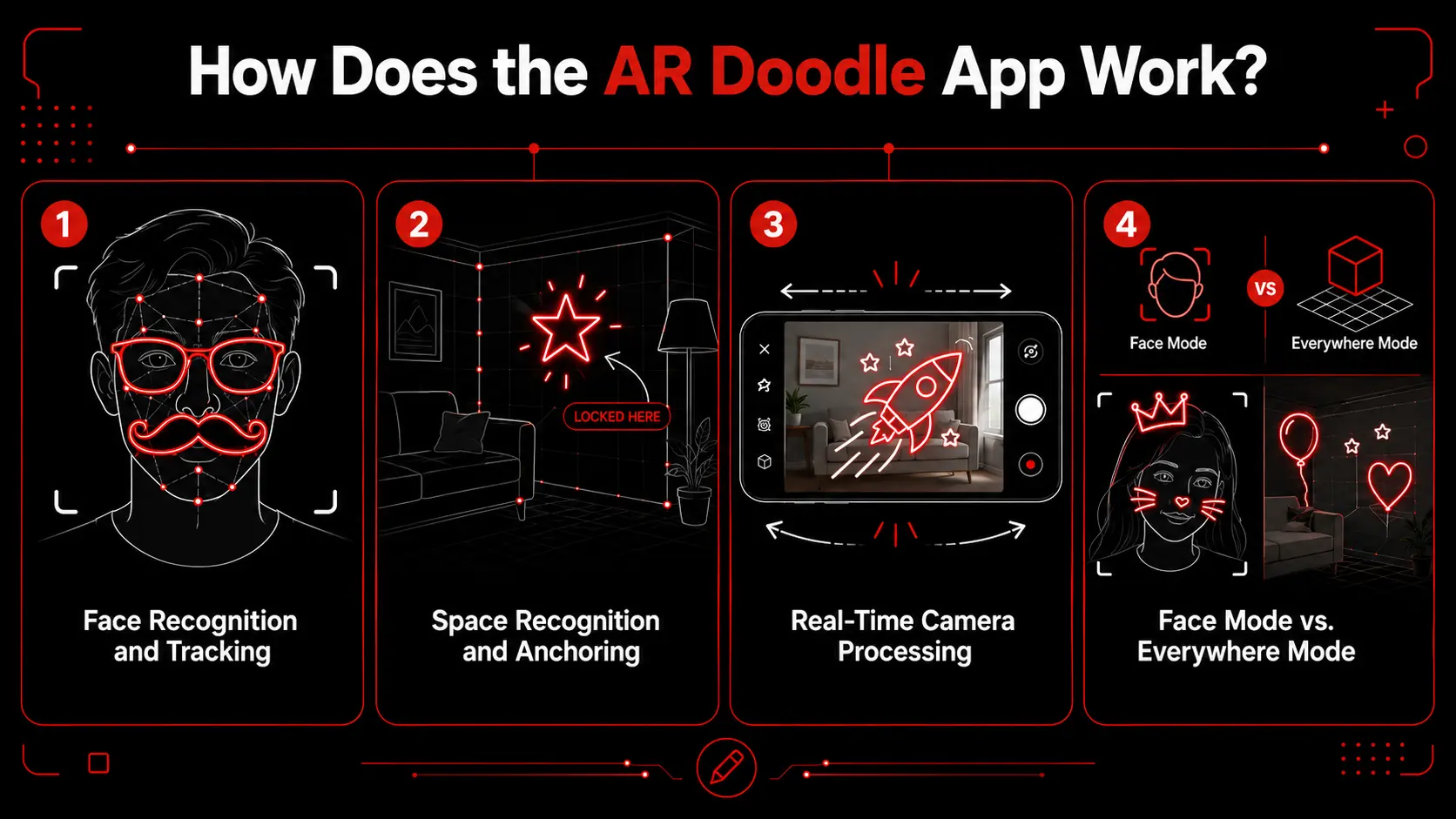
How Does The AR Doodle App Works - EuphoriaXR

Face Recognition and Tracking

Images are identified in parts of the face within the app, like eyes, nose, or mouth, etc. The doodle can follow the face as it moves. 

Space Recognition and Anchoring

The camera analyzes the objects and surfaces in the region. Then it locks the doodle in place against a chosen location to make it look as though it is anchored and won’t budge as the camera pans. 

Real-Time Camera Processing

The phone combines the live camera view with your digital drawing. It will follow the movement of the various objects when you move your phone or whatever object you are viewing with the Doodler app. 

Face Mode vs. Everywhere Mode

Face mode is for attaching drawings to a facial area that has been detected. Works great for virtual glasses, crowns, facial hair, and short messages.

Everywhere mode will put drawings into space around the model. It is suitable for labels in the room, directions, signs, and virtual objects.


How to Use the AR Doodle App?

AR Doodle can be opened as a standalone app on supported, new Samsung smartphones. You might be able to find it under Camera > More > AR Zone > AR Doodle on older devices.

To make an AR Doodle:

  • Open the AR Doodle app.

  • Grant camera and microphone access privileges.

  • Select the front laser camera or the back laser camera.

  • Change to Face or Everywhere mode.

  • Focus the camera on a person’s face or on the room.

  • Give time for the object to be recognized.

  • Select a pen, colour, or a drawing style.

  • Use the finger or supported S Pen to draw.

  • When you are done, press “Record”.

  • Move the camera or subject slowly.

  • Stop the recording when finished. 

  • Open Samsung Gallery to view or share it.

For better results:

  •  Take advantage of good natural and artificial lighting.

  •  Clean the camera lens with clean lens tissue.

  •  Ensure that the face is completely covered.

  •  Smoothly position the phone.

  •  Stay away from places with high dark areas or dark sections of the room.

  •  Test tracking before recording


Main AR Doodle App Features

Features available in the AR app may differ according to Samsung model and version of One UI. 
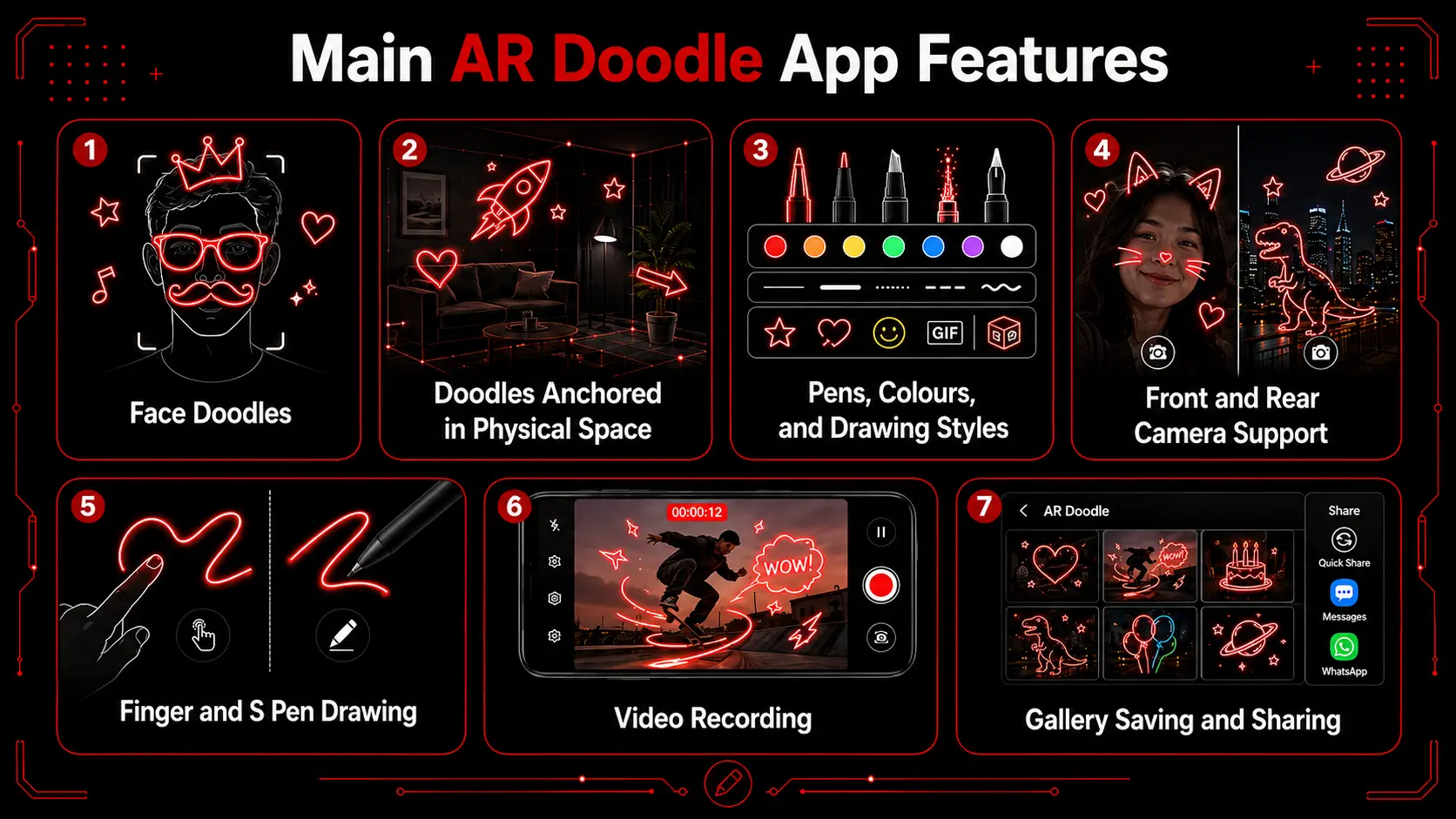
Top AR Doodle App Features -EuphoriaXR

Face Doodles

Face Doodles add virtual images to a detected face. Glasses, crowns, facial hair, symbols, and handwritten messages can be added. 

Doodles Anchored in Physical Space

Space doodles stay associated with a picked area. You can sketch around scenery, doors, walls, objects, or outdoor items. 

Pens, Colours, and Drawing Styles

The app has a variety of pens, colours, line sizes, and effects. Other versions can also feature luminous lines, stickers, GIFs, or 3D-like drawings. 

Front and Rear Camera Support

The front camera captures good images for selfies and facial effects. The back camera can be used more effectively for drawing around others, things, and larger areas. 

Finger and S Pen Drawing

Drawing is available on most supported devices by using a finger as a drawing tool. The S Pen is also compatible with Samsung devices for smoother strokes and greater convenience. 

Video Recording

You can use the doodles to create videos with or without movement; the idea is to film your doodles while they were moving or were not moving. It will also be able to record the process of drawing process. 

Gallery Saving and Sharing

Finished recordings are saved in Samsung Gallery. They can be viewed, cut, modified, and sent by messaging or social networking applications.
Select an established AR development company for creating engaging training or marketing experiences. 

How to Download or Update the AR Doodle App?

AR Doodle is available via Samsung Galaxy Store for compatible Samsung Galaxy devices. A separate download might not be necessary for older phones that already have it included in the AR Zone App or in the camera app. Samsung releases AR Doodle as a standalone app on supported One UI 7. Samsung offers AR Doodle as a standalone app on supported One UI 7 devices.

How to Download the AR Doodle App?

Go to the Galaxy Store on your Samsung mobile phone.

Click on Search. 

Search for AR Doodle.

Click on the Samsung official listing page.

Click the Install or download icon.

Wait for the installation to complete.

Tap the Open AR Doodle from Apps screen.

The official app is com.samsung.android.ardrawing. According to its Galaxy Store description, it is an app to doodle photos and videos and apply 3D effects.

If AR Doodle is not available in the Galaxy Store, the AR Doodle app might not work on your device, software version, or region. Look to see if it is already available through:

In Camera > More, tap AR Doodle. Tap AR Doodle under Camera > More.

If you have an older device, use:

Camera > More > AR Zone > AR Doodle

However, it seems that the location is likely to vary across Galaxy models and software versions, as Samsung’s present instructions indicate. 

How to Update the AR Doodle App?

To see if there is an update:

  • Launch the Galaxy Store.

  • Tap Menu.

  • Select Updates.

  • Find AR Doodle.

  • Click on the update icon.

  • Once it is updated, restart the app.

It’s also important to make sure that your Galaxy phone is updated:

  • Open Settings.

  • Tap Software update.

  • Click on Download and install.

  • Read and adhere to the instructions on the screen.

Avoid downloading an AR Doodle APK from an unknown website. Unofficial files can be different from the latest release and be modified or incompatible with Samsung’s Camera and AR features. 


Which Phones Support the AR Doodle App?

The AR Doodle app is for certain Samsung Galaxy devices (phones and tablets). Support is subject to device model, One UI version, camera hardware, region, and having Galaxy Store installed. Not compatible with all Android/Cyanogenmod devices.

One can check support by:

  • Searching for AR Doodle in the Galaxy Store

  • Looking inside Camera > More

  • On older devices, press the Camera > More > AR Zone button.

  • Updating your phone to the latest One UI version

  • Using the Samsung Support search engine for your model number

AR Doodle was made available on the first-generation Galaxy Note 10 and expanded to other supported Galaxy devices. Samsung does not have one list for all models and all regions, though. 


AR Doodle App vs. AR Zone: What Is the Difference?

The AR Doodle app is used to make virtual drawings on faces and real space. The AR Zone offered access to AR Doodle, AR Emoji tools, stickers, and other Samsung AR features; it was a larger hub. 

Feature AR Doodle App AR Zone
Main Purpose Create Virtual Drawings Access Several AR Tools
App Type Individual Creative Tool AR Feature Hub
Main Tools Face and Space Doodles Doodles, Avatars, Stickers, Effects
Video Recording Yes Depends on the Selected Tool
Older One UI Versions Often Opened Through AR Zone Available Inside Camera or Apps
Newer One UI Versions Available Separately on Supported Devices Removed or Reorganized on Some Devices

Is the AR Doodle App Safe?

Yes, the official AR Doodle app is usually safe and can be found through Samsung Galaxy Store

It may request:

  • Camera access to detect faces and spaces

  • Microphone access to record sound

  • Photo and video access to save recordings

These permissions apply to the app’s primary capabilities. Always download the AR Doodle APK from the official website, and never from an unknown website, as it can be outdated, modified, and incompatible with phones. 


Is AR Doodle Necessary?

No, AR Doodle is not required for the normal operation of a Samsung phone.

There are several basic things that you can do with the phone without it, such as:

  • Making calls

  • Sending messages

  • Taking normal photos

  • Recording standard videos

  • Using Samsung Gallery

  • Running other camera modes

It’s an optional creative tool for augmented reality drawings and camera effects.

Hire AR developer specialists to create an AR solution tailored to your platform and users. 

Can You Delete or Uninstall the AR Doodle App?

If AR Doodle was installed separately from the Galaxy Store, then it is usually possible to uninstall AR Doodle.

Go to:

Yes, uncompress and remove AR Doodle.

You can also hold the app icon, then click on Uninstall.

When the uninstall option is unavailable, the app may be built into your software. If so, you can choose to disable or hide it rather

If you remove AR Doodle, there won’t be any impact on the default Camera or Gallery apps.


Common AR Doodle Problems and Fixes

Problem Quick Fix
App Is Missing Search for It in the Galaxy Store
Camera Does Not Open Allow Camera Permission
Face Is Not Detected Improve Lighting and Face the Camera
Doodle Moves Out of Place Move the Phone More Slowly
App Keeps Closing Update the App and Clear Its Cache
Video Does Not Save Check Available Storage
No Sound in Recordings Allow Microphone Permission
Phone Becomes Warm Stop Recording and Let It Cool

You may remove the caches of an app via:

Settings > Apps > AR Doodle > Storage > Clear cache


Creative Ways to Use the AR Doodle App

The app is suitable for a lot of fun videos, short explanations, and social media content.

Popular ideas include:

  • Drawing glasses, hats, or crowns on faces

  • Write birthday/celebration cards

  • Attach arrows or labelling to items of manufacture

  • Writing virtual messages inside a room

  • Making custom selfie effects

  • Labelling objects during a demonstration

  • Making a short social media introduction

  • Making a secret for clues for a family treasure hunt. 


Is the AR Doodle App Worth Using?

If you are a fan of drawing, camera effects, or brief and creative video, you should try out the AR Doodle app. It is easy to operate and gives more control than a factory-made filter.

For those taking only regular photos and not using the AR feature much, it may not be of much use. If it is optional, you can test it once and delete it, or don’t show it on your system once it is no longer required. 

Need to test your idea before completing development? 

Key Takeaways

  • AR Doodle app makes handmade doodles on faces and actual spaces.

  • Face doodles follow a detected person. 

  • Space doodles are always set in a desired area.

  • On supported devices, you can use the S Pen or finger to draw.

  • Some Samsung devices could have AR Doodle built into the AR Zone.

  • Some newer devices might have it as an app available in Galaxy Store.

  • Samsung’s official app is safe and is optional.

  • Support is contingent upon Galaxy model, region, and One UI version.

  • The app can be uninstalled, disabled, or hidden when not required.

  • Good lighting and slow movement enhance AR tracking. 


Conclusion

The AR Doodle app is a Samsung camera app that lets users draw, write, and add effects to people or physical spaces. It can monitor dynamic faces and fix the drawings in a room. Depending on the Samsung phone, it might be built into AR Zone, or it could be a standalone app. When downloaded directly from Samsung and not in use, it is considered safe and secure to uninstall/hide it. 


Frequently Asked Questions (FAQs)

Yes, the official AR Doodle app is free on compatible Samsung Galaxy phones. Its primary drawing and recording tools are not restricted by any subscription fees. 

Yes, its basic drawing, tracking, and recording features typically function offline once installed. An internet connection might still be required for updates, to get information for online GIFs, downloads, and for sharing. 

AR Doodle mainly works with the live camera view. To change a picture, just launch the Samsung Gallery app and edit the image, draw on it, add text or a sticker using the photo tools. 

Some supported devices can detect multiple faces. In general, tracking is more reliably done if there’s one clearly lit face within the camera frame. 

The AR drawing cannot be separated for relocation or alteration after saving, in general. You can, however, edit further using Samsung Gallery with things like cropping, trimming, and adding text. 

When set to record ambient sound, AR Doodle can capture the sounds in the surrounding environment. Music can be added in the background later by editing the videos in Samsung Gallery or any other video editing software. 

Since AR Doodle runs its camera, AR tracking, and video recording simultaneously, it might consume more battery life. Storage usage is primarily based on the length, quality of video, and quantity of video recordings stored. 

It could perform in low-light conditions, although tracking accuracy may be reduced. Use brighter lights and keep the camera level to ensure the face or other objects are visible without any confusion. 

Get Started With Euphoria XR
• Award-Winning AR/VR/AI Development & Consulting Services
• Flexible Business Models – Project Based or Dedicated Hiring
• 10+ Years of Industry Experience with Global Clientele
• Globally Recognized by Clutch, GoodFirms & DesignRush

Recent Posts

10 Real-World Examples of Spatial Computing - Euphoria XR

10 Real-World Examples of Spatial Computing

TL;DR Spatial computing immerses digital content within physical environments and enables individuals to interact with them via their movement, gestures, voice, or eye-tracking. Some practical

Company's Stats

Successful Projects
0 +
Success Rate
0 %
Pro Team Members
0 +
Years of Experience
0 +

Let's talk about your project

We are here to turn your ideas into reality