













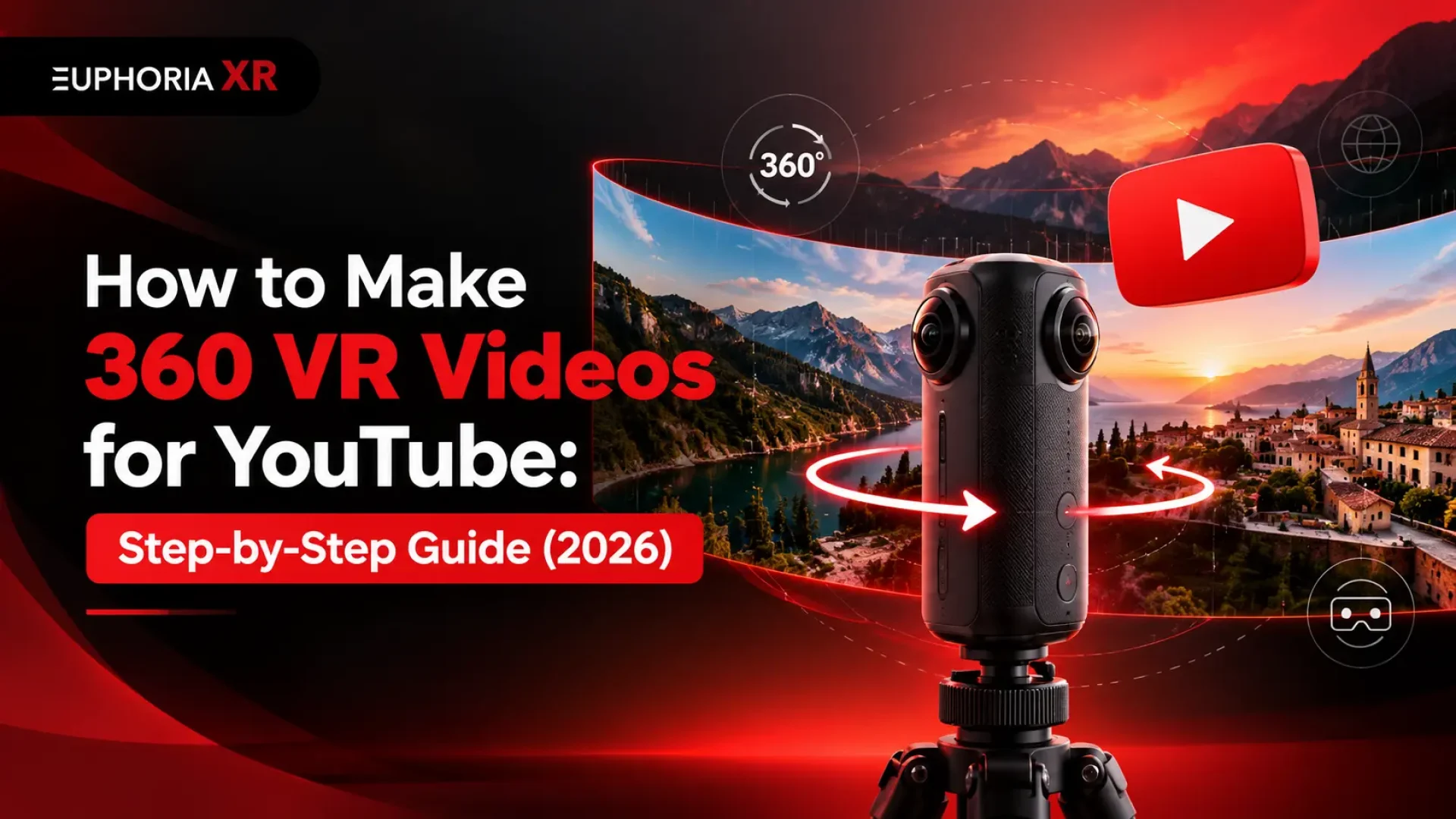

Making a 360 VR video for YouTube involves more than recording everything around a camera. You need to capture spherical footage, stitch the camera views together, edit the video without losing its 360-degree format, and export it with the metadata YouTube needs for immersive playback.
YouTube supports 360-degree videos on compatible browsers, mobile devices, and VR headsets. This makes the format useful for everything from virtual property tours and museum exhibitions to campus walkthroughs, travel videos, and corporate training.
TL;DR
To make a 360 VR video for YouTube, record your surroundings using a 360-degree camera, stitch the footage if necessary, and edit it in compatible software such as Insta360 Studio or Adobe Premiere. Export the video with the correct spherical projection and 360 metadata, upload it through YouTube Studio, and verify that viewers can rotate the video after processing.
Key takeaways:
A dedicated 360 camera is the most straightforward way to record spherical footage.
Standard monoscopic equirectangular footage commonly uses a 2:1 aspect ratio.
Preserve the correct projection, layout, and spherical metadata during export.
Test YouTube’s interactive 360 playback before publishing the video.
What is a 360 VR Video?
A 360 VR video captures an environment around the camera, allowing viewers to choose which direction they want to look.
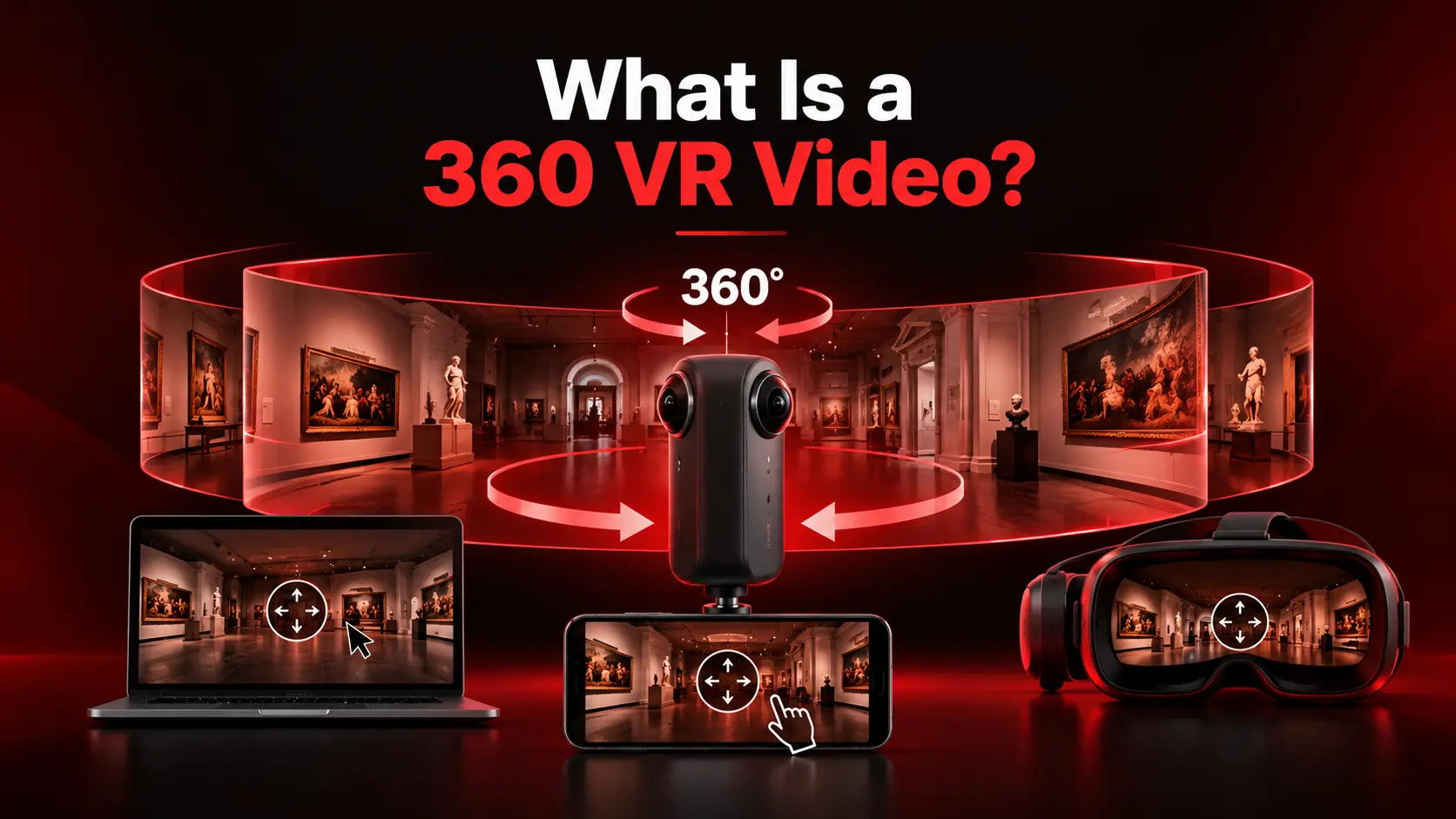
In a regular video, the camera operator determines what appears inside the frame. A 360-degree video gives viewers more control. They can look left, right, up, or down while the video continues playing.
Imagine watching a virtual tour of a museum. A conventional video might show one painting at a time, following the camera’s movement through the gallery. A 360 video lets viewers turn toward other exhibits, examine the room, or look behind them while the tour continues.
On YouTube, this experience works through mouse dragging, navigation controls, compatible mobile devices, or VR headsets.
Planning a 360 VR Video Project? From virtual tours to immersive brand experiences, EuphoriaXR can help bring your ideas to life.
How is 360 Video Different From VR180 and Interactive VR?
These formats are related, but they don’t offer the same experience.
| Video Format | What Viewers Can Do | Typical Application |
|---|---|---|
| Regular Video | Watch the Fixed View Selected by the Creator | Tutorials, Interviews, Marketing Videos |
| 360-Degree Video | Look Around a Spherical Recording | Virtual Tours, Events, Tourism |
| VR180 Video | Explore a 180-Degree Scene, Often with Stereoscopic Depth | Immersive Performances and Demonstrations |
| Interactive VR | Navigate and Interact with a Developed Virtual Environment | Training Simulations, Interactive Exhibitions |
A conventional 360 video typically provides three degrees of freedom for viewing. You can rotate your viewpoint, but you cannot freely walk around the recorded location.
For example, a 360 video can place viewers inside a university laboratory. A custom VR application can go further by allowing them to move between equipment, inspect objects, or complete interactive exercises.
Understanding this distinction helps you choose the right format before production begins.
For experiences beyond 360 video, explore EuphoriaXR’s VR development services to create interactive virtual environments.
What Equipment Do You Need to Make 360 VR Videos?
Your equipment depends on where you’re filming, the quality you need, and how viewers will experience the finished video.
You don’t necessarily need an elaborate production setup. However, you do need a camera or rendering workflow capable of producing complete spherical imagery.
A 360-Degree Camera
Most compact consumer 360 cameras use two wide-angle lenses facing different directions. Their overlapping recordings are combined into a spherical image.
Two current camera examples are:
Insta360 X5
The Insta360 X5 supports 8K 360-degree video recording at 30 frames per second. It also provides stabilization and different recording modes for varying lighting conditions. Insta360 Studio supports editing and exporting footage from the camera.
GoPro MAX2
The GoPro MAX2 supports 8K spherical recording at 24 or 30 frames per second and 5.6K recording at up to 60 frames per second. Its recording options include stabilization, exposure controls, and 360 audio settings.
Both are examples of dedicated 360 cameras, not universal recommendations.
When choosing a camera, consider:
Resolution: Higher-resolution spherical footage gives you more image detail to distribute across the complete viewing environment.
Frame rate: Consider the amount of movement you expect to record.
Stabilization: Particularly important when the camera moves through a location.
Low-light performance: Relevant for museums, indoor exhibitions, and dimly lit environments.
Audio recording: Important for guided tours, interviews, and immersive demonstrations.
Editing compatibility: Check whether the footage works with your preferred post-production software.
For commercial projects, it’s also worth considering recording duration, storage requirements, battery life, and how the camera handles objects near the lens boundaries.
Mounting and Audio Equipment
A tripod, monopod, or compatible selfie stick helps position the camera consistently.
Remember that a 360 camera records the surrounding environment. Large camera supports, cables, lighting stands, and crew members can appear in the footage.
A slim camera mount can make these distractions less noticeable.
For dialogue-heavy recordings, use a suitable microphone setup and check audio levels before filming. If you plan to deliver spatial audio, confirm that your recording and editing equipment can support the required workflow.
Compatible 360 Video Editing Software
You’ll also need software that understands spherical footage.
Common options include:
| Software | Suitable For | Relevant Capability |
|---|---|---|
| Insta360 Studio | Supported Insta360 Camera Footage | Stitching, 360 Editing, VR Preview, Export Presets |
| Adobe Premiere | Professional Video Editing | VR Sequence Settings, Immersive Effects, 360 Export |
| Final Cut Pro | Mac-Based Video Production | Equirectangular Editing, 360 Viewing, Spherical Metadata Export |
Camera manufacturer software is often the easiest starting point because it is designed for the files produced by that camera.
For projects involving multiple cameras, complex audio, graphics, or detailed post-production, a professional editor may be more suitable.
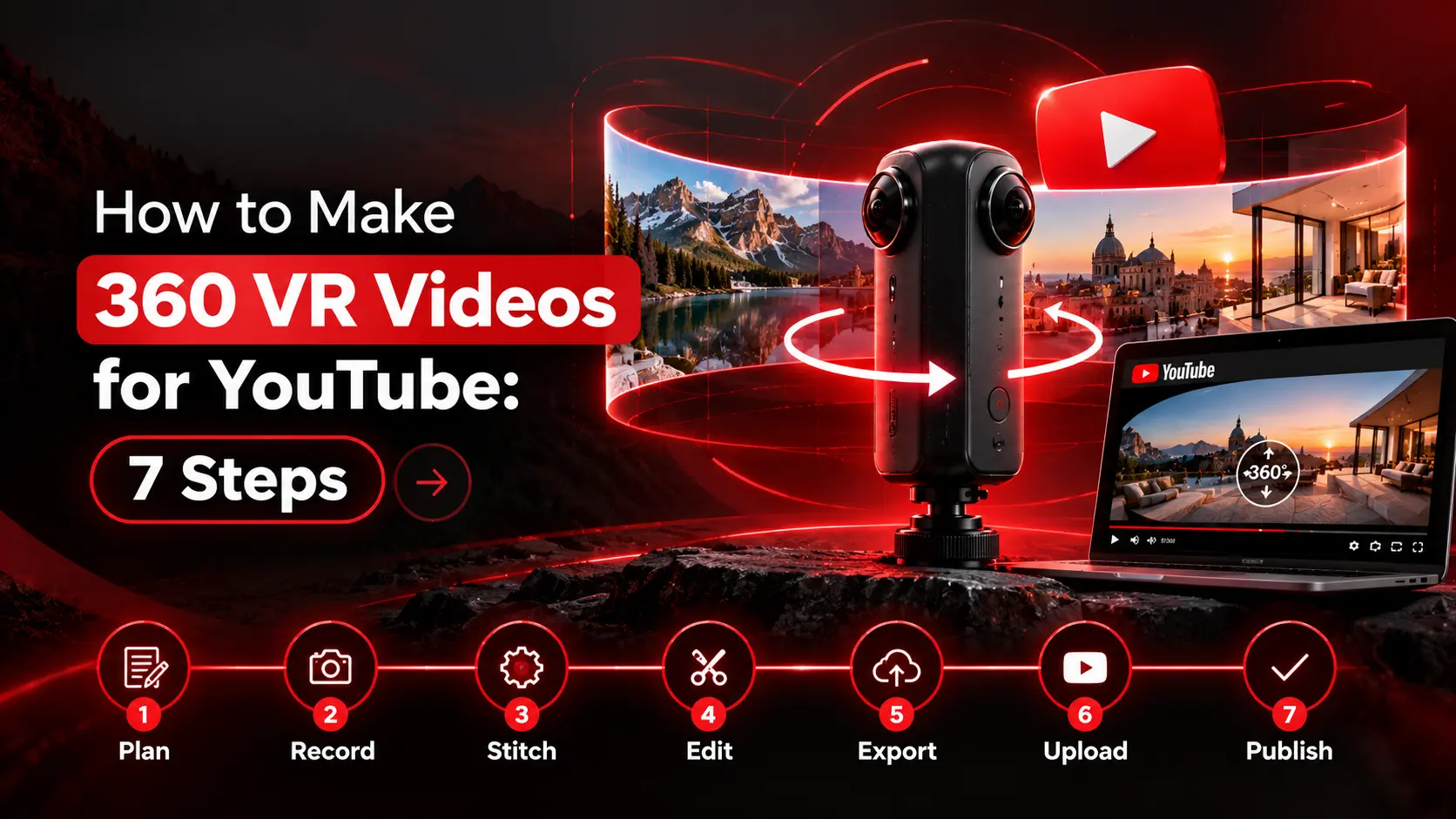
How to Make 360 VR Videos for YouTube: 7 Steps
The following process takes you from planning your recording to publishing a working 360 video on YouTube.
Step 1: Plan Your 360-Degree Video
Start with the experience you want viewers to have.
In conventional filmmaking, you can guide attention by framing a close-up or cutting to another camera angle. With 360 video, viewers can look elsewhere at any moment.
Your scene needs to remain understandable even when someone isn’t looking in the direction you expected.
Before filming, decide:
What is the purpose of the video?
Where should the viewer feel positioned?
Which objects, people, or activities should attract attention?
Will the camera remain stationary or move?
How will the video transition between scenes?
Consider a real estate walkthrough.
Placing the camera near the center of a living room may give viewers a better understanding of its layout than positioning it directly against a wall. You should also consider windows, entrances, furniture, and the route between spaces.
For museum videos, the camera might be positioned where viewers can see several exhibits while a narrator introduces the collection.
Practical tip: Plan an intended starting direction for each scene. Viewers can look anywhere, but a clear initial viewpoint makes it easier to understand where they are.
See how EuphoriaXR applied immersive technology to education in our KSU and Stanford 360 VR training project.
Step 2: Set Up Your Camera and Record the Footage
Once your scenes are planned, prepare your camera and check the recording environment.
Choose a resolution and frame rate that match your camera’s capabilities and production requirements. For detailed location tours, prioritize image clarity and stable recording over unnecessary camera movement.
Position the Camera Carefully
Camera placement affects how natural the recording feels.
Where possible, position the camera at a height and location that make sense for someone experiencing the scene.
Avoid placing important subjects extremely close to the lenses.
Insta360’s official stitching guidance explains that nearby objects can create parallax problems because the camera’s lenses capture slightly different viewpoints.
Insta360’s X5 documentation recommends keeping subjects at least 0.8 meters (2.6 feet) away for improved stitching, while its filming guidance suggests 1 meter (3.3 feet) to reduce visible stitching lines. Allow additional distance where possible and follow the recommendations for your camera model.
Also, try to keep important subjects away from the stitching boundaries between lenses.
Check Lighting and Sound
Inspect the full environment rather than only the direction facing one lens.
Bright windows, dark corners, reflective surfaces, and changing outdoor lighting can make exposure management more difficult.
If you’re filming a guided tour, record a short dialogue sample and listen for echoes, air-conditioning noise, or traffic.
Avoid Excessive Camera Movement
Stable shots often work well for virtual tours and demonstrations because viewers have time to explore their surroundings.
Moving footage can also be effective, but sudden rotations, tilts, and rapid movements may make the viewing experience uncomfortable.
Abrupt cuts between differently oriented scenes can be disorienting too.
Before recording a full project, capture a short test clip and review it using the camera’s compatible viewing software.
Step 3: Stitch and Prepare Your 360 Footage
After recording, transfer the footage to your computer and prepare it for editing.
Video stitching combines the overlapping images captured by different lenses into a continuous spherical view.
Depending on your camera, this may happen automatically or through the manufacturer’s editing software.
Equirectangular projection is a common way to represent stitched 360-degree footage
An equirectangular video represents the spherical scene as a flat rectangle. If you view it in a conventional player, it may appear stretched or distorted.
That is expected. A compatible 360 player maps the rectangular image back onto a sphere to create the immersive viewing experience.
Before moving into editing, inspect the stitched footage for:
Visible joins between camera views.
Distorted people or objects near lens boundaries.
Incorrect horizon alignment.
Differences in brightness between camera views.
Unwanted equipment or crew members.
Missing or corrupted footage.
Correcting problems at this stage can save time later.
If your camera records a proprietary format, use the manufacturer’s recommended import or export workflow.
For instance, certain Insta360 cameras record .insv footage. Insta360 Studio can work with supported files, while other editing workflows may involve exporting or using compatible plugins.
Not every project requires converting the source footage into MP4 before editing.
Step 4: Edit Your 360 VR Video
Once your footage is stitched and prepared, you can arrange scenes, adjust sound, correct colors, and add graphics.
The most important difference from conventional editing is that your project must retain the correct spherical properties.
How to Edit 360 Videos in Insta360 Studio
Insta360’s official documentation provides a dedicated workflow for editing and exporting 360 videos.
For supported camera models:
Install Insta360 Studio version 5.6.1 or later.
Import your compatible 360 footage.
Open the Project page and create a new project.
Set Aspect Ratio to 2:1 (360).
Arrange and edit the footage in the project.
Enable the 360 Monitor to preview how the footage will appear in a 360 player or VR headset.
Adjust the scene orientation when necessary.
Prepare the project for export.
Insta360 also provides a Reorient feature for adjusting the horizontal viewing direction.
Once editing is complete, open Export and select the appropriate platform preset. Check the output settings to ensure your video retains its spherical format.
The manufacturer’s official 360 editing and export guide documents the supported workflow.
How to Edit 360 Videos in Adobe Premiere
Adobe Premiere supports editing 180-degree and 360-degree video, including immersive preview controls.
A typical workflow involves:
Import the stitched spherical footage.
Inspect the source clip’s VR properties.
Create a sequence whose VR settings match the source.
Arrange and trim the clips.
Use the VR viewer to inspect different parts of each scene.
Adjust color, sound, orientation, and transitions.
Add compatible immersive graphics or effects.
Review the complete sequence before exporting.
Premiere can automatically detect VR properties in compatible media.
If the footage isn’t recognized correctly, select the clip in the Project panel and choose Modify > Interpret Footage. You can then review its VR properties and adjust them to match the source.
Adobe also includes immersive effects such as VR Plane to Sphere, which can help position conventional graphics within spherical footage.
This matters when adding directional labels, logos, or explanatory text.
A graphic that looks normal in a rectangular preview may appear stretched or poorly positioned when viewed on a sphere.
For current controls and supported workflows, see Adobe’s VR editing documentation.
Step 5: Export Your Video With the Correct 360 Settings
This is one of the most important stages of creating 360 VR videos for YouTube.
Even if your recording and editing are correct, an incorrectly exported file may appear as a flat panoramic video instead of an interactive spherical recording.
The output must preserve the intended projection, viewing layout, and appropriate VR metadata.
Recommended YouTube 360 Video Export Settings
| Setting | Recommended Approach |
|---|---|
| File Container | MP4 |
| Video Codec | H.264 Is a Documented YouTube Recommendation |
| Projection | Equirectangular for a Standard Full-Sphere Workflow |
| Aspect Ratio | 2:1 for Conventional Monoscopic Equirectangular Footage |
| Resolution | Preserve Suitable High-Resolution Source Detail |
| Frame Rate | Match the Original Recording Frame Rate |
| Scan Type | Progressive |
| Audio | AAC-LC or Another Compatible YouTube Audio Format |
| VR Layout | Match the Source, Such as Monoscopic or Stereoscopic |
| Metadata | Preserve the Correct Spherical and VR Information |
These are practical recommendations for standard prerecorded 360 projects. Specialized stereo formats can have different frame layouts and requirements.
YouTube’s official upload encoding guide recommends MP4, H.264, progressive video, and retaining the original recorded frame rate.
High-resolution footage is especially useful for spherical content because the available pixels are distributed across the viewing environment rather than displayed in a single conventional frame.
However, exporting at a resolution higher than the source doesn’t automatically create additional genuine detail.
What is 360 Video Metadata?
Spherical metadata tells compatible software how to interpret the video.
Without the appropriate information, YouTube may treat the uploaded file as conventional footage.
Metadata can describe properties such as the projection and the video layout.
For example, a monoscopic 360 video provides a single spherical view. A stereoscopic video contains distinct views intended for the left and right eyes.
Choose the export layout that matches your source footage.
How to Export a 360 Video in Adobe Premiere
Adobe’s official export instructions describe the following process:
Complete your editing and open the Export tab.
Choose the intended output and encoding settings.
Expand the Video settings.
Enable Video is VR.
Select the layout that matches your footage.
Review scaling and other relevant settings.
Export the final file.
Adobe documents Stretch to Fill as a scaling option for VR exports.
You can also use supported publishing options within Premiere, although exporting a local file first makes it easier to inspect the result before uploading.
Important: Choosing MP4 alone doesn’t make a video spherical. The file also needs compatible video content and VR information.
If your editor exports a flat, reframed video instead of the original spherical scene, viewers will not be able to freely rotate the view on YouTube.
Step 6: Upload Your 360 VR Video to YouTube
Once you’ve exported the final file, you can upload it through YouTube Studio.
The upload process is similar to uploading a conventional video.
Visit YouTube Studio and sign in.
Click Create in the upper-right corner.
Select Upload videos.
Choose your exported 360 video.
Enter an accurate title and description.
Add a thumbnail and complete the required audience settings.
Choose the appropriate visibility setting.
Save or publish the upload.
For your first attempt, consider keeping the video private or unlisted until you’ve confirmed everything works.
Give Your 360 Video a Clear Title and Description
Describe what the viewer will actually experience.
For example, a university might use:
360° Virtual Campus Tour | Explore Our University
A tourism organization might use:
360° Walking Tour of a Historic Downtown District
The description can explain which locations appear in the video, how viewers can navigate the footage, and whether the recording is best experienced with headphones or a VR headset.
There’s no need to repeat the same keyword throughout the title and description. Accuracy and clarity are more useful.
Allow Time for YouTube Processing
Uploading a file doesn’t mean every playback feature will be available immediately.
According to YouTube’s official 360-degree video documentation, spherical playback may take up to an hour to become available.
Higher-resolution playback may require additional processing time.
If your video initially appears as a flat panorama, allow YouTube to finish processing before checking the exported file for metadata or projection problems.
Step 7: Test Your 360 Video Before Publishing
Open the uploaded video in a compatible desktop browser once processing is complete.
A recognized 360 video should provide controls that allow viewers to change their viewing direction.
YouTube documents a pan button, mouse dragging, and WASD keyboard controls for navigating spherical footage.
Check the following before making the video public:
Can you rotate the view left, right, up, and down?
Does the video display as a spherical scene instead of a stretched rectangle?
Is the horizon correctly aligned?
Are important subjects easy to locate?
Are stitching seams reasonably clean?
Do captions and graphics appear correctly?
Is the audio clear throughout the video?
Does playback work at the available quality settings?
If your project is intended for VR headset viewing, test it on a compatible headset as well.
For a professional production, test the experience from a viewer’s perspective rather than relying only on how the footage looks inside the editing software.
Check that viewers can navigate the video comfortably and follow each scene without confusion.
Take workplace learning further with EuphoriaXR’s VR training solutions, designed for interactive, practical learning experiences.
Why is My 360 Video Not Working on YouTube?
Problems with YouTube 360 playback often come from incorrect export settings, missing metadata, stitching issues, or processing delays.
Use the following table to identify where to investigate.
| Problem | Possible Cause | What to Do |
|---|---|---|
| Video Displays as a Stretched Panorama | Incorrect or Missing Spherical Metadata | Check the Export's VR Settings and Re-Export if Necessary |
| Viewers Cannot Rotate the Video | Spherical Playback Isn't Available or Has Not Finished Processing | Allow Processing Time, Then Inspect the Exported File |
| Image Appears Distorted | Incorrect Projection or Stereo Layout | Match Your Sequence and Export Settings to the Source |
| Visible Lines or Distorted Objects Appear Between Views | Stitching Artifacts | Review the Original Footage and Stitching Workflow |
| Video Appears Blurry | Limited Source Detail, Compression, or Lower Playback Quality | Check the Original Recording and Available YouTube Quality Settings |
| Horizon Appears Tilted | Incorrect Camera Orientation or Stabilization Settings | Correct the Orientation in Compatible Editing Software |
| Text Appears Warped | Flat Graphics or Incompatible Effects | Use Appropriate Immersive Effects and Preview the Spherical Result |
| Audio Doesn't Match the Viewing Experience | Audio Processing or Spatial-Audio Configuration | Inspect the Audio Export and Supported Channel Layout |
What if YouTube Still Doesn’t Recognize the Video?
Start by checking whether the exported file behaves correctly in a compatible 360 player.
If it does, review the upload status and give YouTube sufficient time to process the file.
If it doesn’t, return to your editing project.
Check the projection, stereo layout, and spherical export information. In Premiere, verify that Video is VR was enabled, and the layout matched the source.
YouTube also documents metadata preparation tools, but a supported editing application’s current VR export workflow is generally a more straightforward starting point than relying on an older third-party metadata utility.
If the issue continues, test a short clip rather than repeatedly exporting an entire long project.
How to Make a 360 VR Video With an iPhone
You can use an iPhone in a 360 video production workflow, but its standard camera modes have important limitations.
Apple’s built-in Panorama mode captures panoramic photographs. It doesn’t record a complete spherical 360-degree video.
Supported iPhones can also record spatial video, which captures stereoscopic views for three-dimensional playback. However, spatial video isn’t the same as recording the entire environment around the camera.
Using an iPhone With a 360 Camera
A practical approach is to use your iPhone as a control device for a compatible dedicated 360 camera.
The general process is:
Connect the 360 camera through its manufacturer’s supported mobile application.
Select the desired recording mode.
Preview the camera’s view and adjust settings where supported.
Start recording using the camera or connected app.
Transfer the captured footage for stitching and editing.
Export the video in a compatible spherical format.
Upload it to YouTube and test playback.
This approach provides genuine spherical footage while allowing the phone to support camera control and media management.
Simply rotating an iPhone while recording conventional video doesn’t create a complete synchronized spherical recording.
How to Create a 360-Degree Video From an Image
It’s also possible to build a 360 video from an existing spherical image.
The result depends on the type of image you start with.
A complete equirectangular panorama contains the information needed to show the surrounding environment from one viewpoint. A conventional photograph contains only the portion of the scene originally captured.
Create a Video From a 360 Panoramic Image
One approach is to use compatible video editing software such as Adobe Premiere.
Prepare a complete equirectangular 360 image.
Import the image into the editing software.
Create a sequence configured for the appropriate spherical projection and layout.
Place the image on the timeline.
Extend its duration to create a stationary spherical scene.
Add narration, audio, or other compatible elements.
Export the sequence with the correct VR settings and metadata.
Upload the file to YouTube and verify spherical playback.
Adobe Premiere supports importing still images and adjusting their duration in a sequence, alongside its documented VR project and export controls.
This technique is useful when you want viewers to explore a stationary location rather than watch moving footage.
Can You Turn a Normal Photo Into a True 360 Video?
Not without addressing the missing visual information.
A standard photograph doesn’t contain everything behind, above, and below the camera.
Software may be able to generate or reconstruct additional scenery, but that doesn’t make the result an accurate recording of the original environment.
For architectural concepts or creative demonstrations, reconstructed imagery may be suitable.
For factual property documentation, museums, and location-based experiences, the distinction between captured and generated content should remain clear.
Final Thoughts
Creating 360 VR videos for YouTube requires proper planning, camera placement, editing, and export settings. Before publishing, test your uploaded video to confirm that viewers can navigate the spherical footage correctly.
For organizations, a 360 video may be sufficient for virtual tours, exhibitions, and guided experiences. Projects requiring user interaction or simulated training may benefit from custom VR development.
Need help creating immersive content? Explore EuphoriaXR’s 360 video production services.
Frequently Asked Questions (FAQs)
Can I Make a 360 VR Video Without a 360 Camera?
Yes, if you already have a complete spherical panorama or create the environment using compatible 3D rendering software. However, conventional footage doesn’t automatically contain the visual information needed for a true 360 recording.
For capturing a real-world environment, a dedicated 360 camera is usually the simplest option.
Can You Convert a Regular Video Into a 360-Degree Video?
You can reformat ordinary footage for viewing inside a VR environment, but that doesn’t create real views of everything surrounding the original camera.
A genuine spherical video requires captured or rendered imagery covering the intended viewing environment.
Can You Watch YouTube 360 Videos Without a VR Headset?
Yes. YouTube supports 360 playback in current compatible versions of Chrome, Firefox, Microsoft Edge, and Opera.
The YouTube mobile app also supports spherical video playback. A compatible VR headset is optional.
Does YouTube Support 8K 360 Videos?
YouTube provides upload encoding recommendations for 8K footage, and modern 360 cameras such as the Insta360 X5 and GoPro MAX2 support 8K spherical recording.
However, available playback resolution depends on processing, device capabilities, and network conditions.
The total resolution of a spherical recording is also spread across the entire viewing environment, so an 8K 360 video won’t look identical to a conventional 8K video viewed inside a fixed frame.
Can You Livestream 360-Degree Videos on YouTube?
Yes. YouTube supports 360-degree livestreaming through a compatible camera and encoder setup.
Its official livestream guidance documents an equirectangular workflow, a dedicated 360 setting in YouTube Studio, and recommended encoder configurations.
Livestreaming requirements differ from those used for uploading prerecorded 360 videos.
See YouTube’s 360 livestream encoder instructions for the current setup.
How Do You Make a 360-Degree Video for Google Maps?
Google Maps uses a separate publishing workflow through Street View Studio.
For supported outdoor 360 recordings:
Capture suitable spherical video with location information.
Open Street View Studio.
Upload a supported MP4 or MOV file.
Add a GPX file if the camera stores location data separately.
Submit the recording and allow Google to process it.
Google specifies that Street View Studio’s video conversion workflow is for outdoor footage. Indoor recordings generally cannot supply the necessary GPS information reliably.
Unlike YouTube, Street View Studio uses location data to position imagery on a map.
What is the Best Software for Editing 360 VR Videos?
Insta360 Studio is a practical starting point for footage from supported Insta360 cameras.
Adobe Premiere provides a broader professional editing environment with documented VR effects, sequence settings, and export controls.
Final Cut Pro is another option for Mac users working with correctly prepared spherical media.
Choose software based on your source format, required effects, available hardware, and intended output rather than assuming one editor is best for every production.