How to Optimize a Gaming Laptop for VR when it makes everything laggy, hot, and unplayable.
You start a VR game, anticipating a hassle-free game.
In its place, you will find stutter, frame drops, and motion sickness.
This is not rare
Research indicates that VR requires a constant 72 to 90 FPS for smooth performance.
Even puddles are enough to ruin the immersion.
The majority of people believe that their laptop is weak.
However, in real life, numerous gaming laptops can already satisfy VR demands.
The actual issue is concealed.
Background applications, power limits, overheating, and incorrect settings silently decrease the performance.
Repair those, and you will have a laptop that feels like it has been doubled in speed without even having to upgrade anything.
This tutorial will step-by-step demonstrate how to optimize a gaming laptop to work with VR to ensure that the performance is smooth and stable at all times.
Is Your Laptop VR-Ready?
It would also be necessary to confirm whether a gaming laptop can support VR before understanding how to optimize it to work with it. Optimization is only effective in cases where the hardware is of basic requirements.
Minimum VR Requirements
VR can be supported using a gaming laptop that has the following minimum requirements:
GPU: NVIDIA GTX 1660 Ti or AMD.
CPU: Intel i5 or Ryzen 5 (new generation)
RAM: 8GB
Storage: SSD
Ports USB 3.0 and HDMI or DisplayPort
Recommended Specs for High Performance
To achieve a perfect and balanced VR experience, it is highly suggested to use more specifications:
The use of VR applications makes two images simultaneously and demands steady high frame rates. The systems based on the RTX series GPUs are much better when it comes to maintaining stable FPS.
VR Headset Compatibility and Port Requirements
The VR headsets are not compatible with all laptops. The compatibility will be based on ports and the quality of the connection.
Common requirements include:
Data transfer USB ports 3.0.
DisplayPort or HDMI as an output video.
USB-C compatibility with new VR headsets.
Powerful 5GHz WiFi VR.
The improper use of a port or low-quality cable may lead to lag, tracking, or loss of connection despite having a powerful laptop.
Step-by-Step Guide: How To Optimize a Gaming Laptop For VR
Another thing that you will need after making your laptop VR-ready is optimization. It is in this area that the greatest performance gains are obtained. A lot of VR problems can be resolved not through the poor hardware but the unseen inefficiencies. These steps are followed to realize completely how to optimize a gaming laptop for VR and reach a comfortable performance.
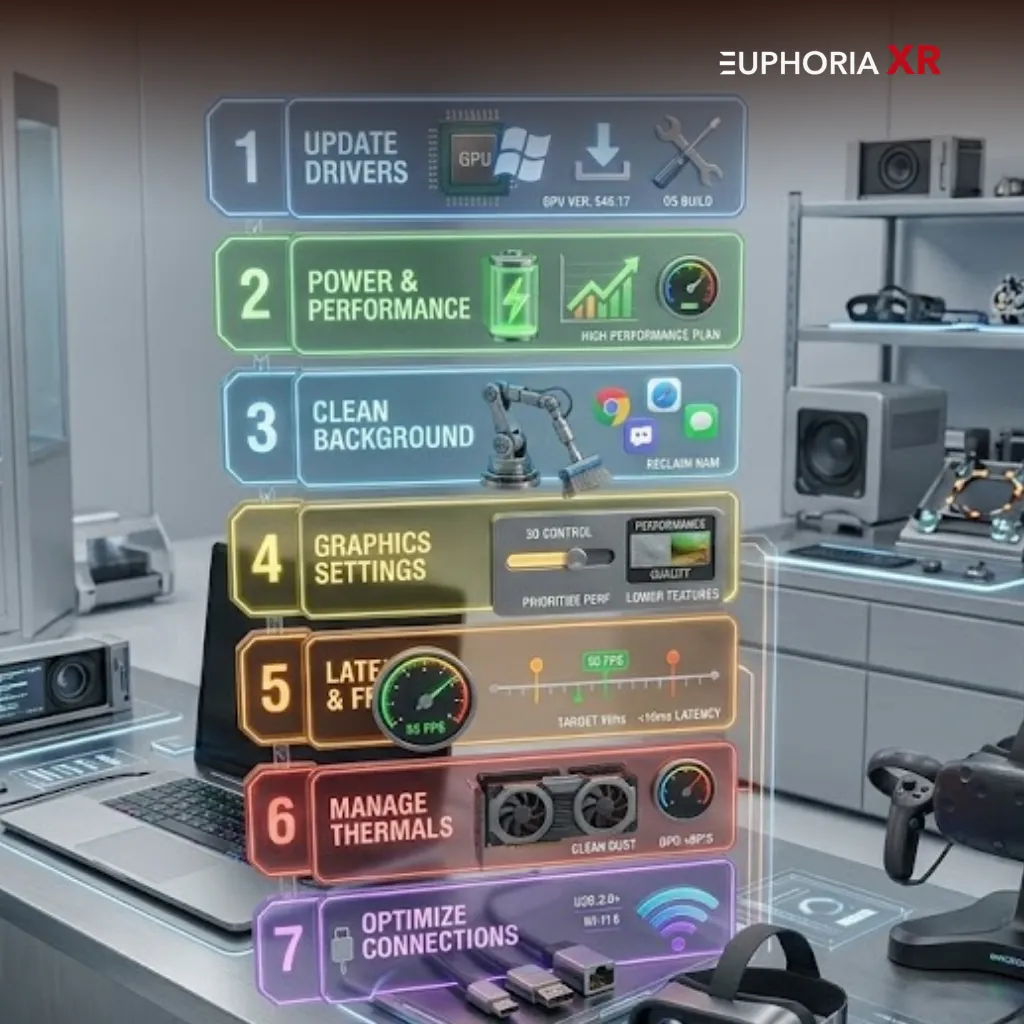
Update Drivers and Operating System
One of the most frequent causes of VR instability and lag is outdated software. Graphics drivers, system updating, and VR firmware are directly involved in performance. The versions developed by new drivers usually contain performance enhancements and bug fixes for newer games and VR platforms. It is always good to keep everything current so that there would be less crashing and the game would be much smoother.
Driver updation enhances the performance of VR by eliminating bugs, increasing compatibility, and optimising the use of the GPUs. Frequent updates contribute to the reduction of stuttering and the increase of the general stability in VR applications.
Optimize Power and Performance Settings
Gaming laptops have been created to compromise between performance and battery life. By default, they tend to cut performance to conserve power. This has a direct influence on VR that needs to have maximum system output at all times. The CPU and the GPU can be used at full capacity by switching to the high-performance mode. It is also important to keep the laptop plugged, as battery mode will decrease its performance to a large extent.
Clean Up Background Apps and Processes
VR requires continuous access to system resources. In a case of many applications running in the background, it consumes CPU, RAM, and GPU power. This causes stuttering, a drop in frames and lag. Disabling all the apps that are not necessary before the introduction of VR is a sure way to make sure that the system is free to dedicate all its attention to the VR load. It can be seen that even minor background tasks can influence performance during times of heavy loading of the system.
Adjust Graphics Settings for VR
Virtual reality is more challenging than normal gaming since it gives a three-dimensional image of the game by showing two images at the same time, one per eye. This doubles the amount of workload on the GPU. The settings, such as shadows, reflections, and resolution scaling, are high settings that can slow performance down easily. Reduction of these settings contributes to the stable frame rates. A steady refresh rate, at a normal rate of 90Hz, is good for smooth and comfortable VR games.
Reduce Latency and Improve Frame Rates
Latency is a direct influence on the VR responsiveness. Latency delay may cause motion sickness and discomfort. Constant frame rates are needed in order to have a seamless experience. Such characteristics as motion smoothing assist with the consistency in a situation of decreased performance. VR platform settings can be changed to focus on performance rather than graphics to make it much more responsive.
Manage Laptop Thermals
VR can get hot very fast, as both the CPU and the graphics card will operate continuously. The system lowers the performance to avoid destruction as the temperature increases. This is referred to as thermal throttling. The heat issue is important in ensuring a steady performance. The increase of the airflow, cooling solutions, and maintenance of clean vents can help avoid unexpected performance drops in the process of extended sessions.
Optimize USB, Display, and Network Connections
VR performance is also limited by the processing power, besides the connection stability. Information, video communication, and tracking are all based on robust and reliable connections. Direct ports are used rather than hubs to guarantee that there are no variations in data transfer. Signal loss is avoided by the use of high-quality cables and the selection of ports. With wireless VR, there should be a powerful and well-established network connection in case of lag and interruptions.
Related: https://euphoriaxr.com/pc-gaming-for-vr/
Advanced Optimization Tips for Better VR Performance
Once your computer is configured to handle VR properly at a basic level (for example: the correct graphics card in use, screen resolution, etc.), you can utilise advanced optimisation techniques to improve stability and reduce minor performance issues while using an already VR-capable system.
Enable Hardware-Accelerated GPU Scheduling
Enabling the “hardware-accelerated GPU scheduling” option will help your computer’s graphics processing unit (GPU) operate more efficiently, and provide the CPU with additional time to complete other tasks by freeing up cycles from the CPU to perform work on other tasks altogether. Thus, you should see a steadier delivery of frames during gameplay as a result.
Some benefits of having hardware-accelerated GPU scheduling enabled are:
Use VR Performance Monitoring Tools
By using a performance monitoring tool, you will be able to monitor what is happening inside of the system in real-time, and will have the added benefit of being able to identify performance problems relatively quickly and easily.
Here are the important performance metrics that you should be monitoring:
FPS (frames per second): How smoothly are frames being delivered?
Frame Time: How consistent are frame time intervals?
GPU Usage (the actual load of the graphics card): Amount of processing performed by the GPU
CPU Usage (how much processing power the computer has available): The amount of processing power the CPU is using
Temperature: Maximum allowable operating temperature
Optimize SteamVR and Oculus Settings
The VR platforms you choose to use will have built-in settings that affect performance within those platforms. Optimising these settings will greatly impact both the smoothness of the VR experience and the stability of the overall performance of the VR system.
When tuning these settings, concentrate on these key areas:
Render Resolution (lower) / Supersampling
Enable Motion Smoothing Features
Refresh Rate Balanced to Overall System Capability
Tuning these settings will reduce GPU load and will help ensure your VR experience has consistent frame delivery.
Upgrade RAM or Storage
If you have made the changes described previously and your PC is still unable to provide you with a satisfactory VR experience, one option that you may want to consider is upgrading the hardware in your PC.
Some upgrades you can consider making are:
Having those upgrades gives you extensive headroom for resource-intensive VR apps.
Common VR Performance Issues and Fixes
Even with optimizations made, there may still be problems that remain. A good understanding of your issue will allow you to resolve it much more quickly.
VR Lag and Stuttering
An overloaded or unstable system can result in lag and/or stuttering.
Common Issues:
Fixes:
Shut down or limit the number of background programs running
Make sure you have the latest drivers and software updates
Maintain a consistent frame rate
Frame Drops and Low FPS
Having low FPS affects the smoothness and kills your immersion in your game experience.
Common Issues:
Excessive or unnecessarily high graphics settings
Your GPU is not powerful enough
Your laptop is set to power-saving mode
Fixes:
Lower the resolution and graphic details of your game
Put your computer into high-performance mode
Optimize the settings you are using in your VR platform
Overheating During VR Sessions
Over time, as your VR device gets hotter, it begins to decrease in performance.
Common Causes:
Fixes:
Use an additional cooling pad
Raising the laptop to allow for better airflow
Clean out air vents frequently
Connection and Tracking Issues
Issues with the connection to your VR device can create lag and tracking issues.
Common Causes:
Fixes:
Use a direct port to hook up to your desktop or laptop instead of using a USB hub
Use good-quality cables to connect to your VR device
Ensure you are connected to a strong, stable internet connection
Implementing the advanced tips and fixes will help to maintain a stable VR experience.
Key Factors That Affect VR Performance on Laptops
The reason VR performance increases after optimizations have been made is not due to one single component but rather due to several components of a computer system working together.
GPU and CPU Performance
The key responsibility of the Graphics Processing Unit, sometimes referred to as the GPU, is the creation of visual elements in VR. In VR, the GPU is responsible for rendering two images (one for each eye) at the same time, which represents a large percentage of the workload on the computer system created by VR.
Conversely; The Central Processing Unit will manage aspects of a game (the calculations, model manipulations, collisions, and all background processing needed to support the game). If the CPU (the computer system component responsible for performing calculations) is not functioning properly, such as when using a slower CPU or an overloaded CPU, this can result in negative performance in VR even when the GPU is functioning properly.
The GPU can produce a large number of frames in a short amount of time if the CPU can provide the necessary logic to create those frames (frame render times).
RAM and Storage Speed
Random Access Memory is used for multitasking; If a computer system has insufficient RAM, the computer system will slow down or drop frames depending on how much RAM has been used.
The use of different types of hard drives, such as solid-state drives, would then load the application faster than traditional hard drives, allowing the application to launch faster with no delay.
Thermal Management
One of the biggest reasons a computer system will restrict performance on a laptop is because of heat. When the temperature of the components within the computer system increases, the individual components will restrict the performance of the computer system to protect themselves.
It is necessary for VR to provide consistent performance over an extended period, which may be limited due to restrictions placed on a computer system due to high temperatures.
Higher temperatures will cause the computer system to restrict its performance much more than it would otherwise if the temperature were lower.
Power Delivery
In order to conserve battery life, gaming laptops tend to limit the power supply to the CPU and GPU, limiting their performance as a result.
When you run the system at high performance and plugged in to power, you will have access to the system’s full power delivery.
If you do not supply your system with enough power to run, it does not matter how powerful a GPU/CPU you may have; they will both underperform.
Bandwidth and Connectivity
A connected VR system needs fast data transmission to deliver video, object tracking, and input to the user. If the video connection is slow, there can be video lagging, tracked object errors, and interruptions that disrupt your VR experience.
Three important factors that determine the connectivity speed of a VR system are:
The speed of the USB connections.
The quality of the video connection.
The strength of the wireless network connection (if used for VR).
To ensure a VR system will perform properly, it is important to have stable connections.
Bonus Tips for a Smooth VR Experience
Here are some simple suggestions that will help keep your wireless VR system performing consistently.
Restart your system before every VR session.
Update all drivers/software regularly.
Use your laptop in a cool, well-ventilated environment.
Close any unnecessary programs running in the background before each VR session.
Check all cables and connections before each VR session.
Small habits can tremendously help reduce the negative performance effects during your VR experience.
Final Thoughts
Optimizing a gaming laptop for virtual reality (VR) does not require upgrading any components. Instead, it requires eliminating performance bottlenecks from your system, and through correct management of power settings, heat, software, and connection types, even mid-range laptops can produce consistently smooth and stable VR experiences. Consistent frame rates, controlled thermal conditions, and efficient use of resources are more important than having the highest performing hardware. By following the provided guide, you can have an enjoyable and reliable VR experience without needing to upgrade.